Troubleshooting and Online Manuals
Issue: My mouse/keyboard is flashing at the power symbol.
Your mouse/keyboard requires charging as it is getting low on power. Do let your device charge for up to an hour in order to fully charge the battery. Do take note to fully charge your device on unboxing to get the best experience.
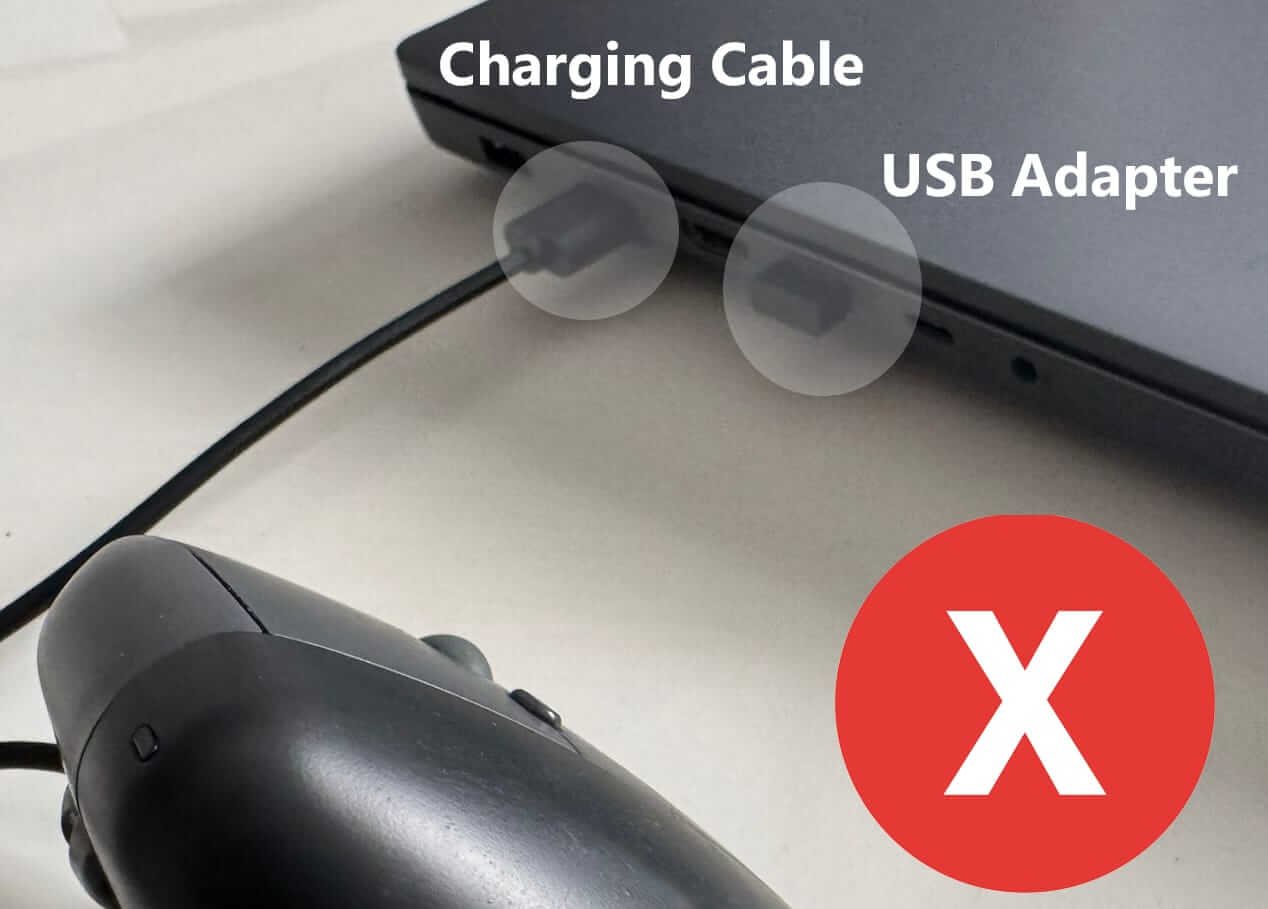
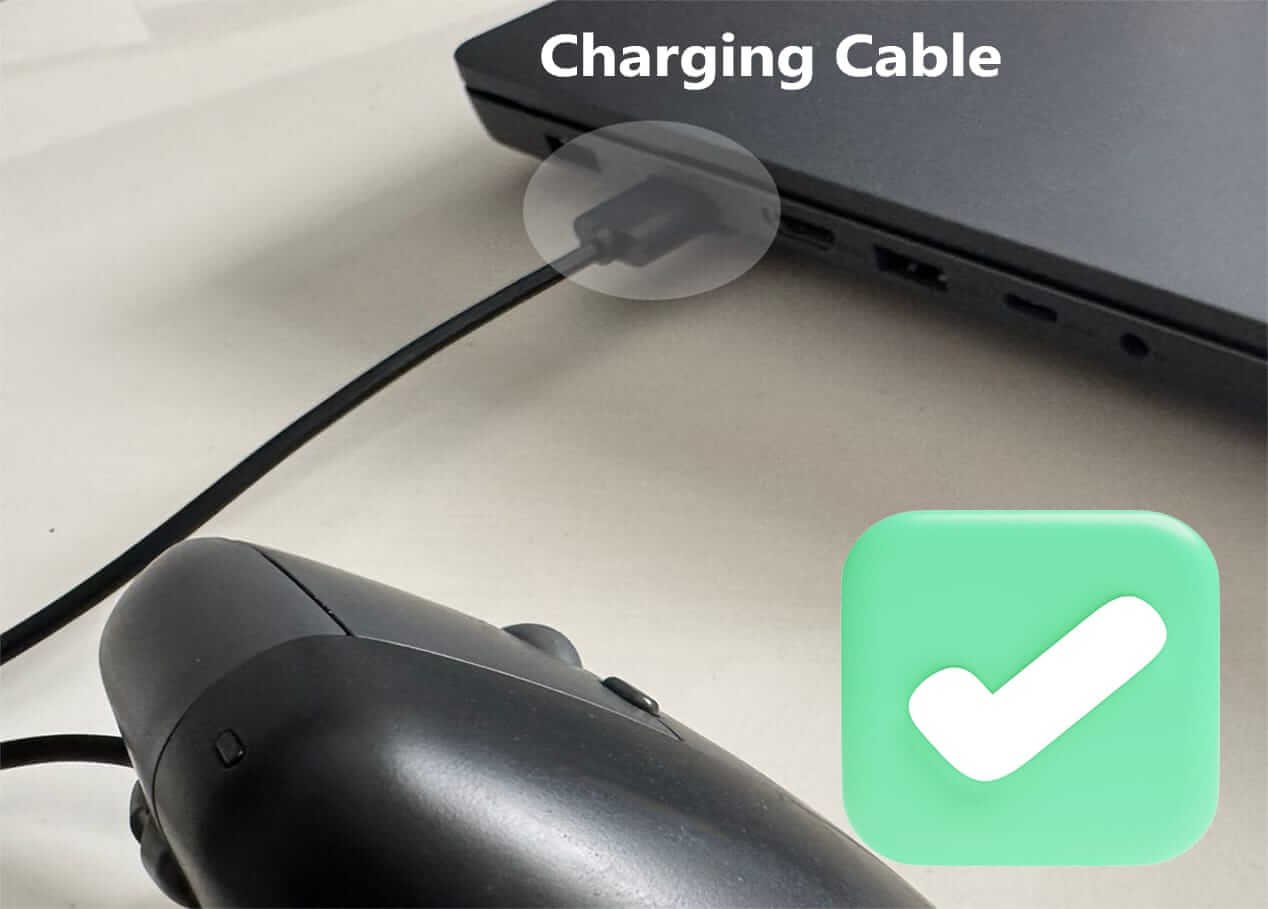
Important Note: Your device cannot be charged and used at the same time if the USB adapter and power charging cable are connected to the same device. For example, you cannot use the device if your USB adapter is connected to your laptop and you are charging the device from the same laptop.
Issue: My mouse/keyboard is not responding.
All Ergokey Lab devices are plug and play. Your laptop or computer will detect the wireless mouse or keyboard which you should be able to see with a notification as seen below when the USB adapter is plugged in. If this does not happen, you may wish to follow these steps:
-
Charge the keyboard and mouse before use.
-
Try connecting your USB adapter into another USB port.
-
Make sure your device is on (The power switch at the back of your keyboard or mouse should be flicked to on)
-
Restart your computer or laptop.
-
If you are using Bluetooth for your device, ensure your computer or laptop has Bluetooth turned on and that your devices have been paired correctly.
If the problem continues to persist, please contact us.
Issue: I have put my device for charging but it is still not working.
Generally, if the battery is completely drained, it would require up to 30 mins to power up again. To ensure this does not happen, charge your device when the power symbol starts flashing.
Important Note: Your device cannot be charged and used at the same time if the USB adapter and power charging cable are connected to the same device. For example, you cannot use the device if your USB adapter is connected to your laptop and you are charging the device from the same laptop.
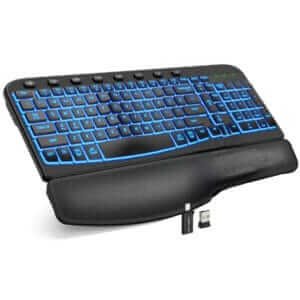
How do i configure the color scheme on the Gembird keyboard?
Press FN + INS keys together to change your backlight colors.
How do i turn on Bluetooth on my vertical mouse?
Generally, if the battery is completely drained, it would require up to 30 mins to power up again. To ensure this does not happen, charge your device when the power symbol starts flashing.
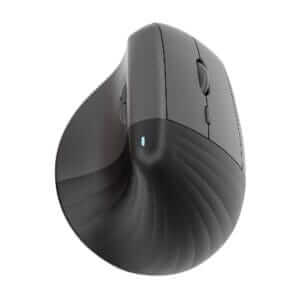
Couso Vertical Mouse
-
Turn on you Bluetooth mode by pressing the circle button at the back on the mouse.
-
The second and third circles are Bluetooth Channel 1 and Channel 2 respectively (BT1 & BT2). Once your circle is highlighted on either channel, press and hold for 5 seconds.
-
The indicator light should start flashing.
-
Pair your device with your computer or laptop by turning on your Bluetooth and finding the device. The name of the device should be BT3.0 or BT5.0.
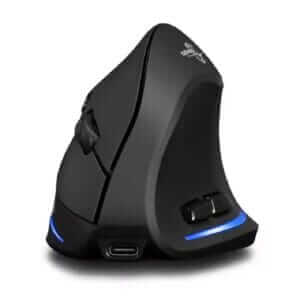
Zelotes Vertical Mouse
-
Turn on you Bluetooth mode by pressing the circle button at the back on the mouse.
-
The Zelotes Vertical Mouse has 3 bluetooth channels. When the circle button is pressed, look at your mouse screen to see the mode you are currently in.
-
Once you are in Bluetooth mode, pair your mouse with your computer or laptop. Turn on your bluetooth and connect with the mouse (BT Prefix will be BTS 5.0 Mouse)
Important Note: If you are switching from 2.4 GHZ mode, ensure that your USB adapter is removed so as to prevent signal interference. If you are still experiencing issues. check out this guide:
Pairing Bluetooth Devices - Microsoft Windows Support Guide
Online Manuals
Setup Guides
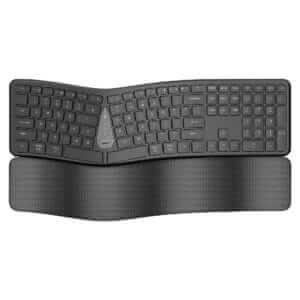
ABM066/GMK70 Keyboard Configuration Setup Guide












![Mofii Ergonomic Keyboard and Mouse Set [Purple Set]](https://ergokeylab.com/wp-content/uploads/2025/05/Mofi_PurpleKeyboardwithMouse-300x300.jpg)
![Mofii Ergonomic Keyboard and Mouse Set[White]](https://ergokeylab.com/wp-content/uploads/2025/05/Mofii_WhiteErgonomicKeyboardwithMouse-300x300.jpg)