Ergonomic setup tips to reduce Hand Strain at your Workstation
Spending hours at a computer is common in today’s work environment, but poor workstation setup can take a toll on your body—especially your hands and wrists. Many people experience discomfort without realizing it’s caused by their desk, chair, keyboard, or mouse.
The good news is that with a few ergonomic adjustments, you can dramatically reduce strain and improve your comfort and productivity.
This guide will walk you through how to build a more ergonomic workspace, focusing on your chair, desk, keyboard, and mouse. With a strong ergonomic setup, you will be able to prevent hand and wrist injuries caused by repetitive straining.
Why is an Ergonomic Setup Important?
Ergonomics is about fitting your tools and environment to your body—not the other way around. Poor posture and repetitive movements can compress nerves, overwork muscles, and cause long-term problems like wrist pain, tendonitis, or CTS.
When your desk, chair, and input devices are properly adjusted, your body is in a more neutral, relaxed position, which minimizes strain on your joints and tendons. You become more comfortable and more productive.
Tip 1: Start With the Right Chair
Your chair is the foundation of your ergonomic setup. If your chair doesn’t support your posture, it puts stress on your spine, shoulders, and arms—which ultimately affects your wrists and hands too.
What to Look For in an Ergonomic Chair:
Adjustable seat height: Your feet should be flat on the floor, knees bent at 90 degrees.
Lumbar support: Proper lower back support helps keep your spine aligned.
Armrests: These should allow your forearms to rest gently without shrugging your shoulders.
Seat depth and tilt: A seat that adjusts forward/backward and tilts slightly helps reduce pressure on hips and thighs.
Pro Tip: When seated, your elbows should be close to your body and form a 90-degree angle as your forearms rest on your desk or armrests. This reduces tension in your shoulders and wrists.
Tip 2: Adjust Your Desk Height and Monitor Position
Your desk height plays a key role in keeping your arms, wrists, and hands aligned. A desk that’s too high forces you to lift your shoulders, while one that’s too low encourages slouching and wrist extension. Poor alignment over time can lead to discomfort or repetitive strain injuries.
Ideal Desk Setup:
1. Desk surface should be just below elbow height when you're seated.
2. Monitor should be at eye level, about an arm’s length away, with the top third of the screen aligned with your eyes.
3. Avoid clutter around your desk and keep essential items within easy reach to reduce awkward stretching.
4. Use a chair with proper lumbar support and adjust the seat height so your feet rest flat on the floor or a footrest.
5. Keep your keyboard and mouse on the same level, ensuring your wrists remain neutral while typing or navigating.
6. Use a wrist rest or a split keyboard if needed to reduce wrist strain during long sessions.
Sit-Stand Desks:
If you have access to a sit-stand desk, alternate between sitting and standing every 30–60 minutes. Just remember that standing still for long periods can also cause strain, so movement and variety are key. Try to shift your weight, take short walks, or stretch periodically to keep circulation flowing.
Tip 3: Keyboard Placement
A poor keyboard position can contribute to wrist and hand strain because it often forces you to bend your wrists outward (ulnar deviation) or angle your forearms unnaturally. Over time, this can increase the risk of developing repetitive strain injuries (RSIs) or conditions like carpal tunnel syndrome.
Best Practices for Keyboard Placement:
1. Keep the keyboard centered in front of you and at the same level as your elbows.
2. Your wrists should stay flat and float just above the keyboard—avoid bending them up, down, or to the side.
3. Use a negative tilt if possible, where the keyboard slopes away from you (not toward you). This promotes neutral wrist posture.
4. Keep your mouse close to the keyboard to avoid excessive reaching and shoulder strain.
5. Ensure there’s enough space in front of the keyboard for your forearms to rest lightly when not typing.
Take regular breaks to stretch your fingers, wrists, and arms, especially during long typing sessions.
Consider an Ergonomic Keyboard:
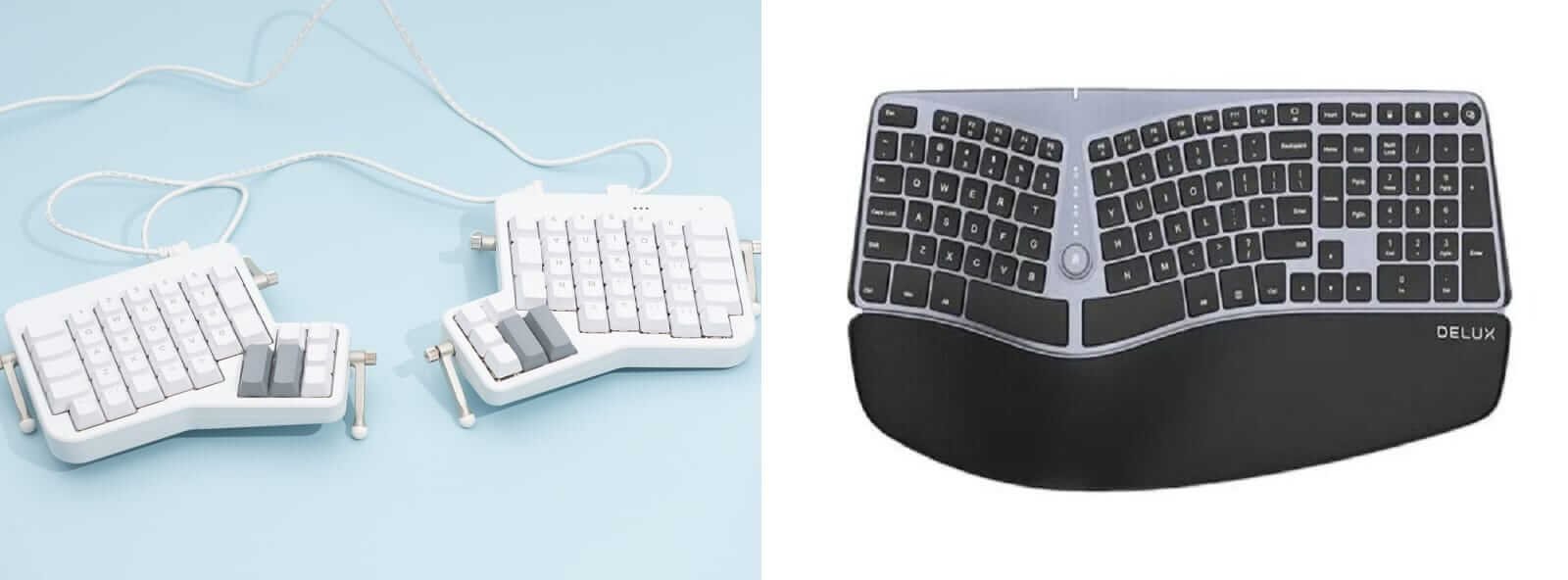
An ergonomic keyboard can help you maintain proper wrist alignment. Look for models with:
• Split layouts to reduce wrist deviation
• Tenting options for natural forearm rotation
• Low force keys to reduce finger fatigue
Ergonomic keyboards are especially beneficial for users who type frequently or experience discomfort with traditional flat layouts.
A tented keyboard (left) and a split keyboard (right)
Tip 4: Choose the Right Mouse
Your mouse might be small, but it can cause big problems if it doesn't fit your hand or forces you to overreach.
Mouse Ergonomics 101:
• Keep your mouse close—ideally on the same surface and level as your keyboard.
• Your wrist should stay neutral, not bent up or down when holding the mouse.
• Use your whole arm to move the mouse, not just your wrist.
Types of Ergonomic Mice:
• Vertical mice keep your forearm in a handshake position, reducing twisting and helping maintain a neutral posture.
• Trackball mice allow movement without sliding your hand across the desk, reducing strain and saving space.
• Contoured mice support your palm and encourage a more relaxed grip, which helps reduce finger fatigue.
• Pen-style mice or stylus-based input devices are another alternative for users with wrist sensitivity or precision-focused tasks.
Find one that suits your hand size, grip style and daily use. A mouse that’s too large or too flat can force awkward hand positions, while one too small may lead to over-gripping. Testing different shapes and sizes can go a long way toward preventing discomfort and improving long-term comfort.
Tip 5: Use Accessories
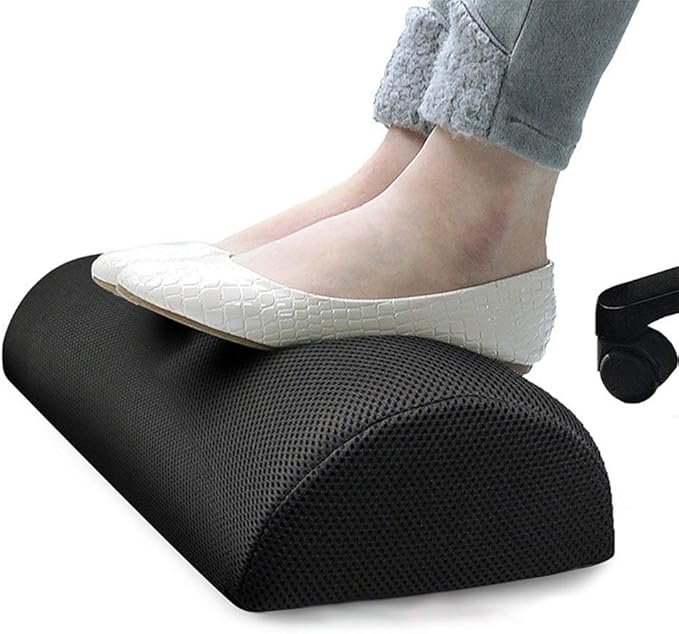
A footrest helps reduce tension in your legs if your foot are not resting in a comfortable position.
Simple add-ons can enhance your ergonomic setup even further:
Wrist Rests:
Wrist rests support your wrists while actively typing , so as to avoid extra pressure on your wrist tendons. Ergonomic keyboards offered by Ergokey Lab all come with soft wrist rests for comfortable typing.
Monitor Stands or Laptop Risers:
These elevate your screen to eye level, reducing neck and upper back strain.
Footrests:
If your chair is too high and your feet don’t rest flat on the floor, a footrest helps keep your posture balanced and reduces leg tension.
Importance of movement and taking breaks
Even the best ergonomic setup won’t help if you stay in one position too long. Your body thrives on movement and variety.
Healthy Habits to Incorporate:
1. Take micro-breaks every 20–30 minutes to stretch your fingers, roll your shoulders, and move your wrists.
2. Practice wrist stretches and hand exercises to improve blood circulation and reduce tension.
3. Use the 20-20-20 rule: Every 20 minutes, look 20 feet away for 20 seconds to rest your eyes and reduce digital eye strain.
4. Stand up, stretch your back, or take a short walk every hour to refresh your body and mind.
5. Perform simple desk exercises like neck rolls, shoulder shrugs, and calf raises to stay limber and energized.
6. Alternate between sitting and standing if you have a sit-stand desk, and shift your weight occasionally when standing.
7. Stay hydrated—drinking water encourages natural movement by prompting regular breaks.
Set reminders or use apps to nudge you into motion if you're deep in focus. Movement is essential not just for preventing discomfort, but for maintaining long-term physical and mental well-being.
Red Flags that Your Setup Needs Attention
Watch for these early symptoms that could indicate poor ergonomics:
• Tingling or numbness in fingers
• Wrist or forearm pain after typing
• Shoulder stiffness or neck strain
• Tired or cramping hands
If you’re noticing any of these, it’s time to reevaluate your workstation. For more information on how these conditions can manifest, check out our related article.
Final Thoughts: Invest in Comfort and Longevity
Creating an ergonomic workspace isn’t just about comfort. It is about protecting your health and ensuring long-term productivity. You don’t need to overhaul everything at once.
Start with the basics: a supportive chair, a well-positioned desk, and ergonomic devices. Even small improvements can significantly reduce wrist and hand strain, reducing the impact on your body and health.
Also available on:
Your trusted partner for ergonomic computer apparels.
Payment methods are secured with SSL encryption by Stripe: